
Better Communication, More Evidence, Less Switching
As the school year draws to a close, it’s a good time to review everything we’ve added to Evisense this year to help you build better connections with parents, capture meaningful evidence of learning, and share the story of every pupil’s progress. Here’s a summary of all the Evisense updates and new features for 2025/26 – in case you’ve missed any along the way.
Top Picks from This Year’s Updates
NEW: Evisense Explorer – FREE Parental Communication Tool
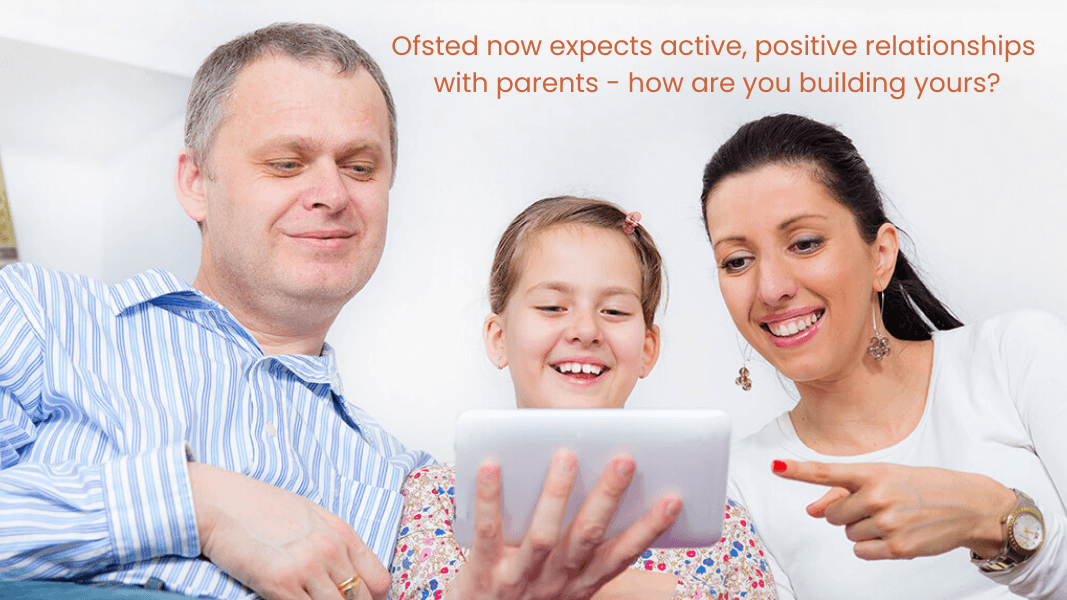
Evisense Explorer is our entry-level communication tool and it’s now included free for all pupils licensed in Connecting Steps. You get full access to the secure Evisense communication hub – schools can post class blogs, newsletters, event reminders, and progress updates. Parents can comment and respond in a safe, private space. The one difference from a paid Evisense subscription: no photo, video, or audio uploads. Schools that want to share media can upgrade to Evisense Premium at any time – and you only need to upgrade the pupils you want to upload evidence for. Get started with Explorer →
View Student Achievements When
Linking Assessment Points
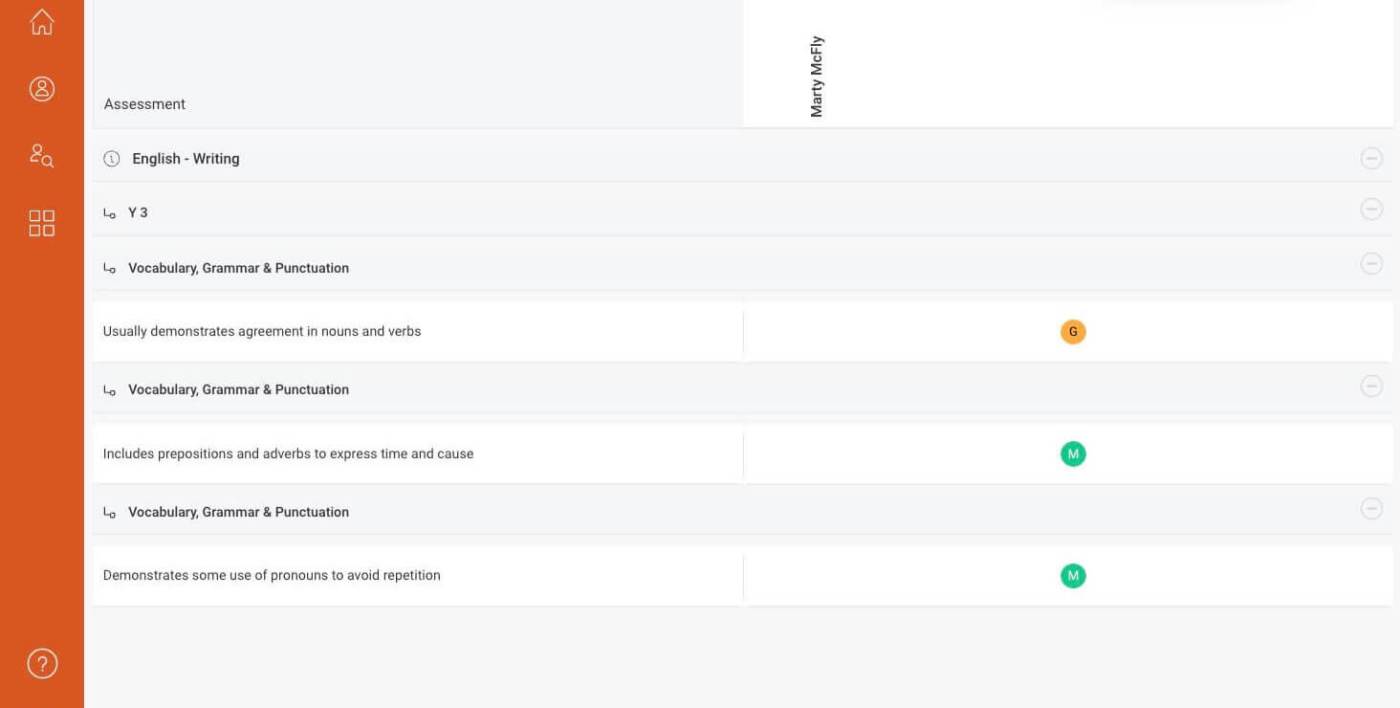
When creating a post and linking to assessment content, you can now see each student’s current achievement level at a glance. When you publish the post, you’re also prompted to update the assessment in Connecting Steps – right there, without switching tools. Assess from Evisense
Post Progress Updates from Connecting Steps
into Evisense
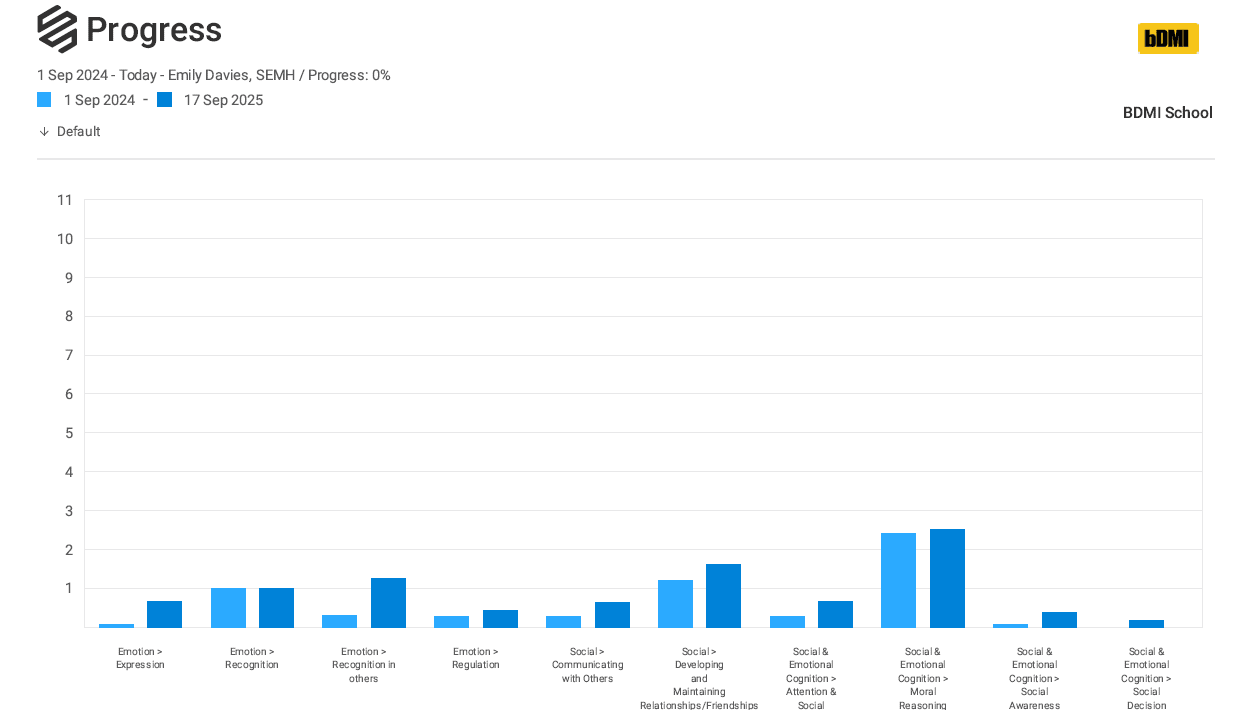
Share visual progress updates directly with parents in just a few clicks, without leaving Connecting Steps. A simple way to keep families informed and build active parental engagement without extra admin.
More Updates
- 17 Post Types Available – There are now 17 post types in Evisense, giving you the right format for every kind of communication with parents and staff. How to guide
- Create and Share One Page Profiles – Create, update, and share One Page Profiles with several templates to choose from, stored securely alongside learning evidence. How to guide
- Bulk Printing – Generate separate PDF reports for multiple students in one action. Evisense remembers your last print filter settings during the session too, so repeat reports are faster. How to guide
- Bulk Edit Posts – The Post Actions feature lets you update multiple posts at once – change privacy settings, update status, print, or delete in bulk. How to guide
- Achievement History – Enable ‘Show achievement at time of post creation’ in User Preferences to see exactly what level was recorded when each post was created – and track a skill’s journey from ‘Engaged’ to ‘Mastered’ over time. How to guide
- Track Linked Assessments Across Frameworks – The ‘Also appears in’ button shows where a linked assessment features across multiple profiles or frameworks. Update it in one place and it updates everywhere automatically. How to guide
- Schedule Posts in Advance – Choose the exact date and time to publish your posts. Perfect for sharing updates when parents are most likely to see them, without needing to be logged in yourself. How to guide
- Date Range Filter for Posts – Use the date range option in advanced filters to quickly locate the posts you need. How to guide
- See All Posts Linked to a Piece of Media – See exactly which posts used a particular photo or video from the Gallery. How to guide
- Download Long Posts as PDFs – When text exceeds the post limit, full content is attached as a downloadable PDF. Especially useful for longer posts like Therapist Notes. How to guide
- Personalised Student Directory – Your default student group now auto-displays when you log in. Use the dropdown to switch groups or view all. How to guide
- Update Student Profile Photos – Keep the feed personal and up to date by adding a recent photo for each student. How to guide
- Zoom into Images – Click on any image in a post and use the +/- icons to examine details more closely.
- Extended Login Time – Select ‘this is a private computer’ on the login screen to stay logged in for 60 minutes. How to guide

Also Using Our Assessment Software – Connecting Steps?
It’s been a big year for Connecting Steps too, with new assessment frameworks and software improvements across the platform. Read about all the updates on the Connecting Steps website.
Read the Connecting Steps updates
Need a Hand?
If you have any questions about any of these features, our support team are always happy to help. Book a FREE 15-minute online support session and we’ll guide you through whatever you need.